Getting started
Letnook opens with two short screens. By the end you have a plan of empty spaces, and a Get set up card walks you to your first payment.
The welcome screen
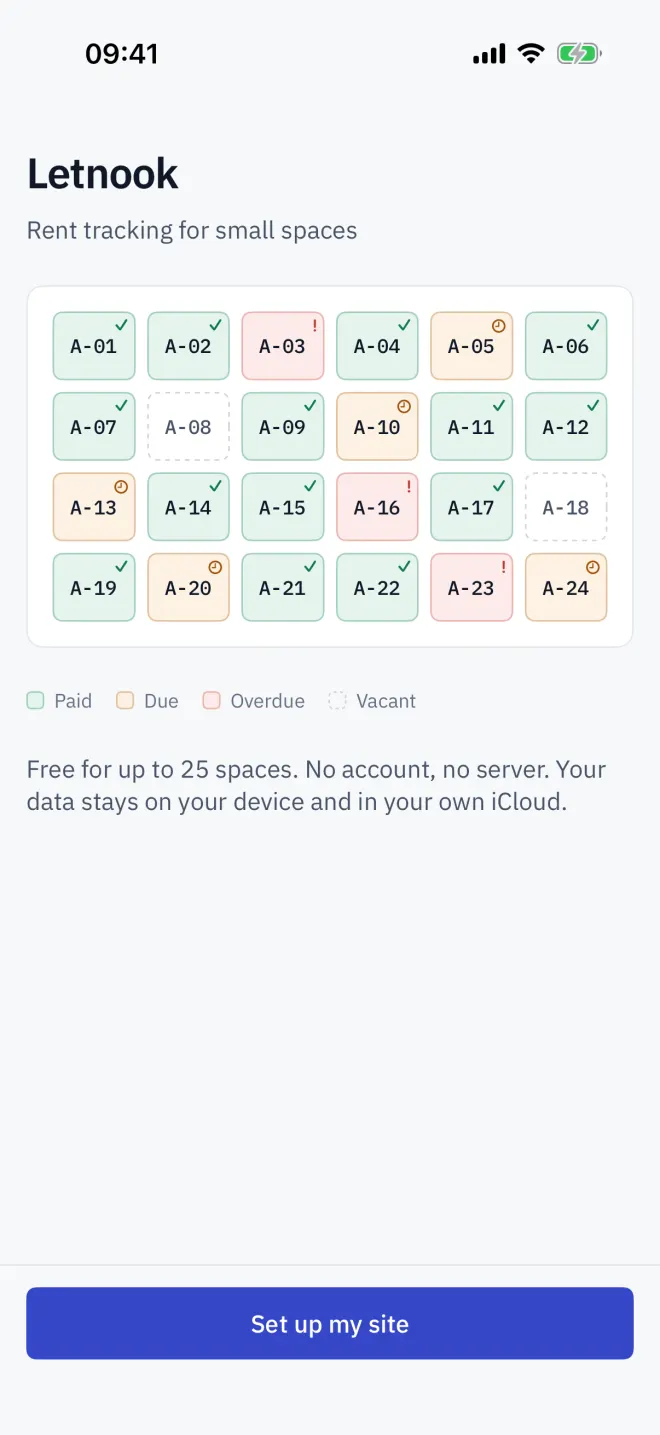
The first screen shows an example plan and what Letnook costs: free for up to 25 spaces, with no account and no server. Your data stays on your device and in your own iCloud. Tap Set up my site.
Your site
-
1Name
Name the site
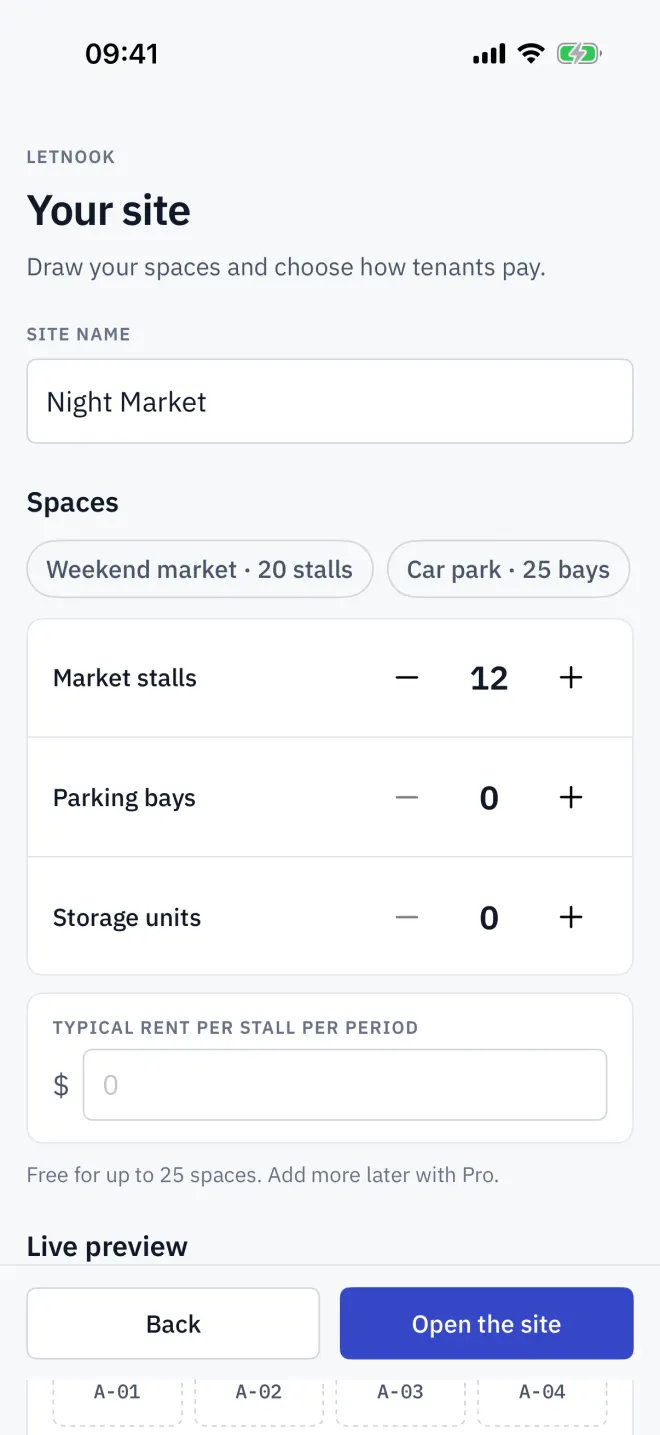
Type the name your tenants know it by in Site name, for example a market or car park name.
-
2Count
Count your spaces
Tap a template — Weekend market · 20 stalls, Car park · 25 bays or Storage · 10 units — or set Market stalls, Parking bays and Storage units with the − and + buttons. Rough numbers are fine; you can add and delete spaces later.
-
3Rent
Enter a typical rent
For each kind you counted, enter the typical rent per period. It becomes the default rent for new spaces of that kind, and you can change any space later.
-
4Market
Check the market
Currency and payments shows the country, currency and payment methods Letnook will use. Tap Change if it is wrong — this is the only time you can: the market cannot be changed after the site is created.
-
5Open
Open the site
Watch the Live preview, then tap Open the site. The button stays grey until the site has a name and at least one space.
The Get set up card
On a new site a Get set up card sits above the plan with three steps. Each one ticks itself when the app sees it done, and tapping a step takes you to the right screen.
- Put a tenant in a space — opens the first vacant space in the editor.
- Set what they pay — opens a let space so you can check its charges.
- Record the first payment — opens Collect.
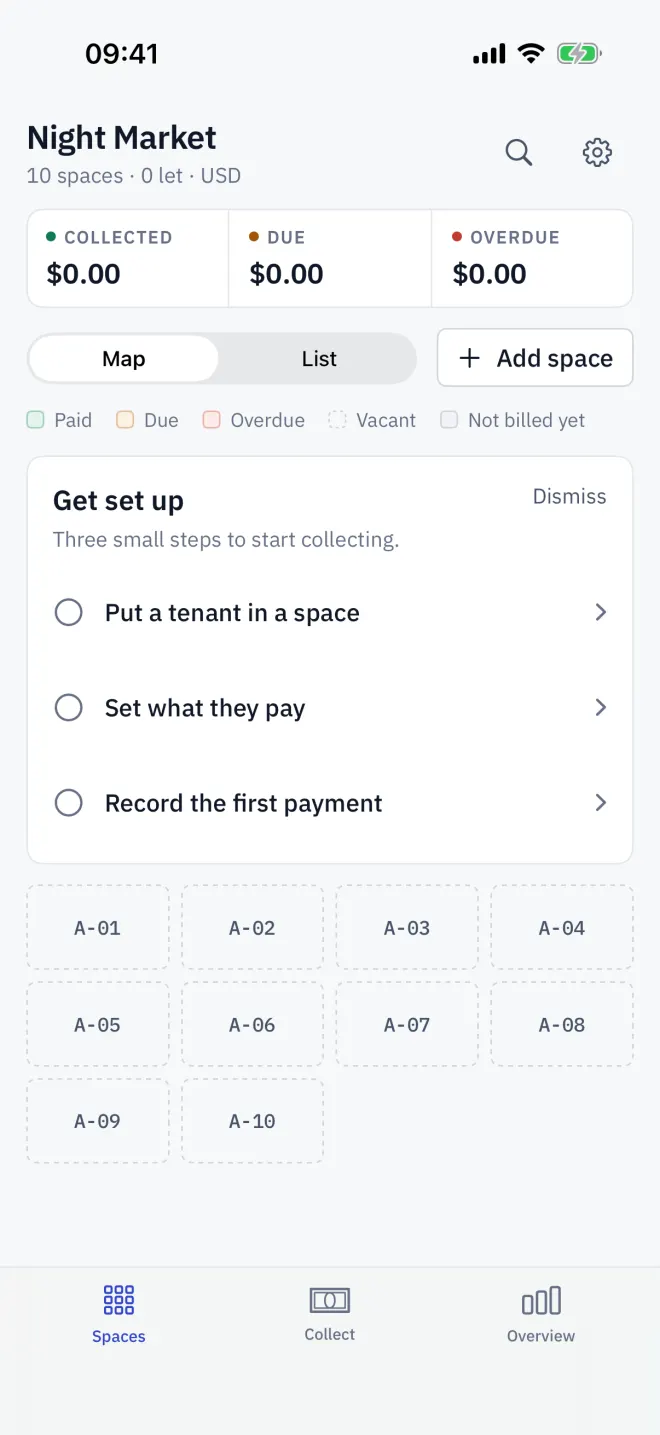
The card goes away when all three steps are done, or when you tap Dismiss. To bring it back, open Settings → Help → Show the setup guide.
Read next
The plan and its colours
Read Letnook's Spaces plan: every stall, bay or unit is a cell coloured Paid, Due, Overdue, Vacant or Not billed yet. Switch to List, filter by zone, search.
NextLetting a space
Put a tenant in a Letnook space: open it on the plan, tap Edit space, add the tenant name and contact, check what the space is charged, and save.
NextLanguage and market
Letnook keeps the interface language separate from the market, which sets currency, number format, calendar era and payment methods. English in baht works fine.